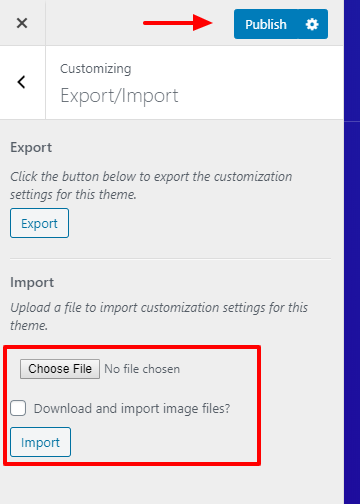
If you cannot get the demo content to import, you can import the individual elements manually. Continue reading below to learn how to manually import demo content.
Where To Find Demo Files
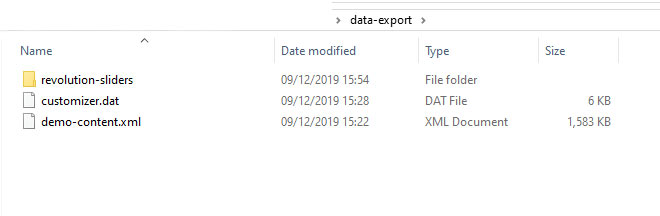
Go to the download package > data_export folder you will see demo version folders, each folder containing an demo-content.xml, widgets.wie, customizer.dat.
How to Import XML Files
Step 1 – Download and install the WordPress Importer plugin.
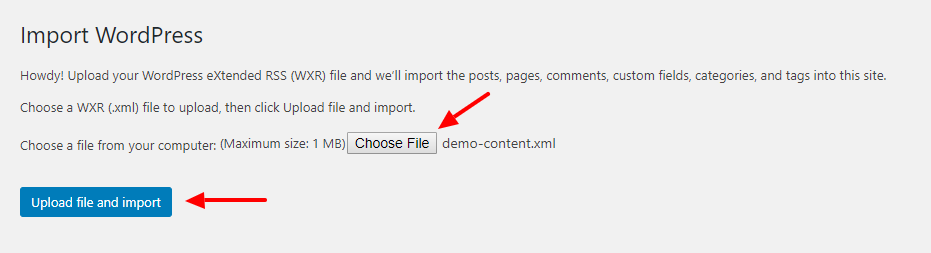
Step 2 – Go to Tools > Import.
Step 3 – Click Choose File and select a demo-content.xml file from the homepage folder.
Step 4 – Click the Upload File and Import button.
Step 5 – Check the Download and Import File Attachments checkbox.
Step 6 – After WordPress is finished importing, click the Have Fun link to return to your dashboard.
How to Import Customizer
Step 1 – Go to Plugins > Add New
Step 2 – Search and install plugin Customizer Export/Import
Step 3 – Go to Appearance > Customize > Export/Import.
Step 4 – Click Choose File and select data-export/customizer.dat file from the download package.
Step 5 – Click the Import button.